
How to Send an SMS Blast
(Step-by-step Guide)
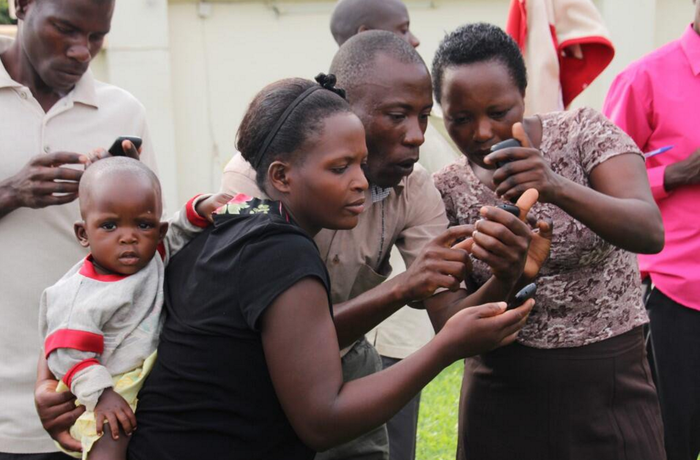
Need to send a message to a large group – fast? Our SMS Blast campaign can help you reach out to the 5 billion people who have no internet access but have mobile phones—whether they are using a basic feature phone aka ‘dumb’ phone, or a smartphone.
Imagine having the power to send information via SMS text message to 5 billion mobile users anywhere in the world. The SMS Blast Campaign comes in handy for sending emergency alerts, important reminders, or promo notifications. It can be highly targeted, personalized, and you’d be able to use Sender ID to boost credibility.
Important messages will go straight to their phone’s inbox. In fact, SMS has an impressive open rate of 98% and 90% of those are read within 3-5 minutes. Don’t worry about grey routes because we are integrated with different telcos worldwide using premium quality routes to deliver your SMS text messages.
Additionally, you can have the SMS Blast message available on-demand. Mobile users can self-subscribe to receive your text message by setting up Incoming SMS Rules or through the cost-free Missed Call opt-in method. If you’d like people to respond, too, check out our SMS Survey campaign.
Ready to launch you SMS Blast Campaign? Follow these easy steps:
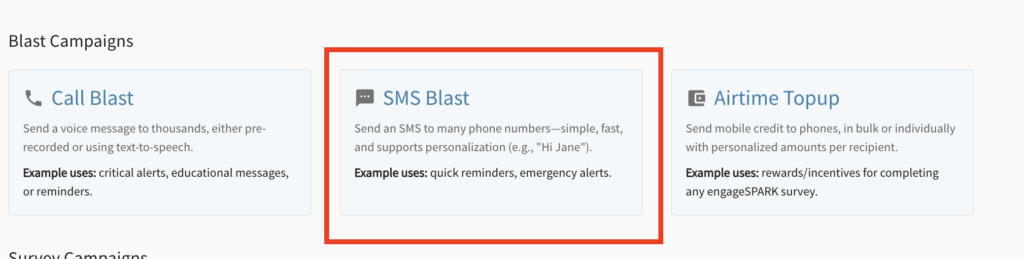
1. Create a campaign
Go to “campaigns” https://app.engagespark.com/campaigns. Click “New campaign” and select “SMS Blast”.

2. Write your message
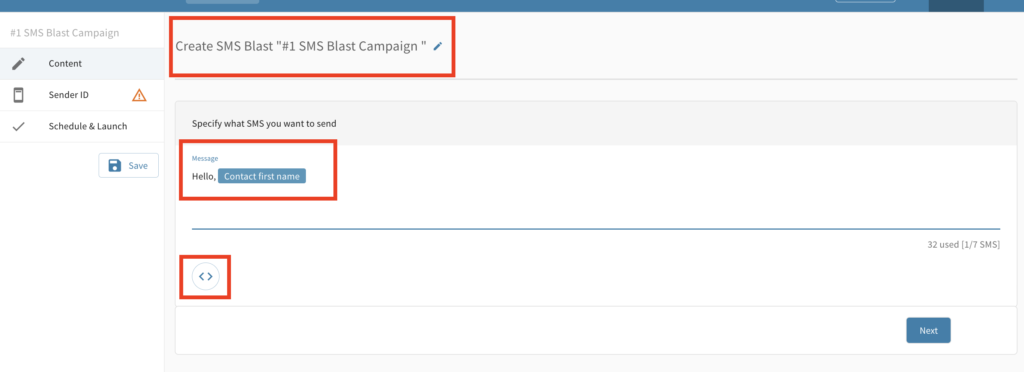
Type the message you want to send. To make your SMS more engaging, you can personalize it using dynamic fields such as the recipient’s name—just click the Personalize icon to insert variables into your message.
Don’t forget to give your campaign a clear name so you can easily find and manage it later.
3. Choose your sender ID
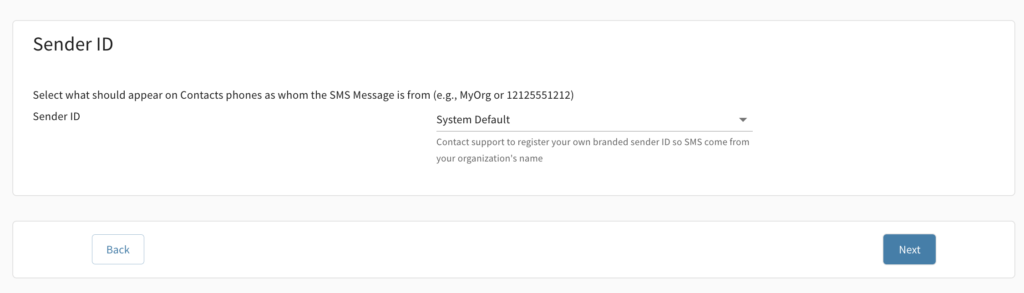
By default, the Sender ID is set to System Default. If you already have a registered Sender ID, you can select it from the dropdown menu. If you don’t have one yet, please contact support at helpteam@engageSPARK.com or click the chat icon in the lower-right corner of the screen.
A Sender ID is the name or number that appears as the sender of your SMS message on a recipient’s phone. Using a Sender ID helps recipients recognize your organization, builds trust, and makes your messages look more professional.
4. Review and launch your campaign
Before sending, review your settings, and set your SMS blast campaign to Launch.
5. Subscribe your contacts
Once your campaign is created and launched, you can now subscribe your contacts to the campaign so they can start receiving calls or SMS based on your setup.
Sample Uses
- SMS Emergency Alerts: Broadcast weather or emergency information and how to prepare.
- Employee Engagement: Message your staff or employees about upcoming company events or important announcements.
- Appointment Reminder: Don’t let clients or professional contacts forget about business meetings – create an SMS reminder in advance.
- Brand Awareness: Send product announcements or special offers to expand the customer database and promote customer loyalty.
- SMS Recruitment Tool: Generate interest, confirm interviews and send follow-ups to fill job vacancies fast.
SMS Features and Functionality
✓ Personalize your SMS Blast by inserting the first name and other contact details
✓ Add other language versions of your text messages
✓ Different scripts or character-based languages are supported
✓ Register a Sender ID for your brand or company name
✓ Trigger an SMS message to be sent after an automated voice call
✓ Send text messages to targeted users by creating smart groups
✓ Information can be accessed on-demand by enabling the Missed Call or SMS Opt-in
✓ Use of Keyword Prefix to run multiple SMS Blast Campaign using the same number
✓ Determine how many characters were used by looking at the SMS counter
✓ Schedule in advance or send immediately
Related Articles
SMS Features and Functionalities »
Edit Running SMS Blast Engagements »
Offline Drip Campaign Better Than Email for Top of Mind Awareness »
Offline SMS and Voice Drip Campaign »
Have questions or need a little extra help?