
How to Subscribe Contacts to Campaigns
Now that you’ve finished creating your campaign and added your messages or questions, you’re almost ready to start sending calls or SMS to your contacts. The final step is subscribing your contacts to the campaign.
Contacts must be subscribed before they can receive any campaign messages or calls. There are several ways to do this depending on your setup. You can subscribe contacts individually, or in groups or segments. This guide will walk you through each subscription method step by step so you can easily add your contacts and launch your campaign successfully.
Subscribe Your Contacts
After launching your campaign, you can subscribe contacts by clicking the Actions button next to the campaign and selecting Manage Subscriptions.
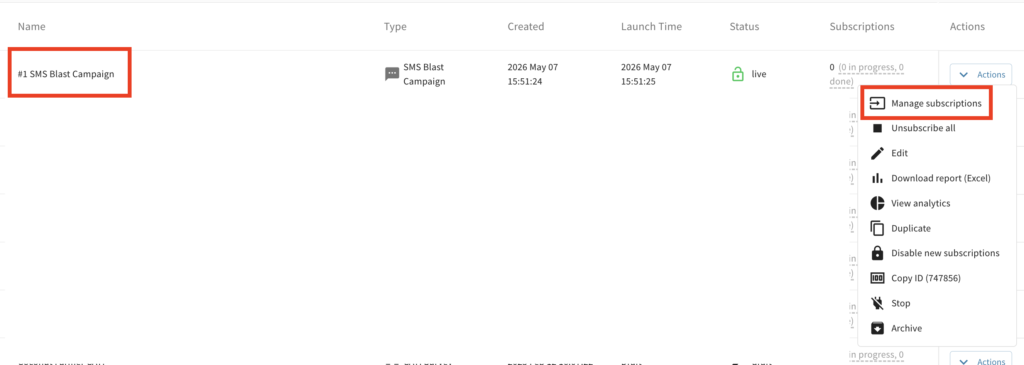
From there, you have three ways to subscribe contacts:
- Select a single contact or multiple contacts at the same time
- Subscribe contacts by group
- Subscribe contacts by segment
By Selecting a Single Contact or Multiple Contacts
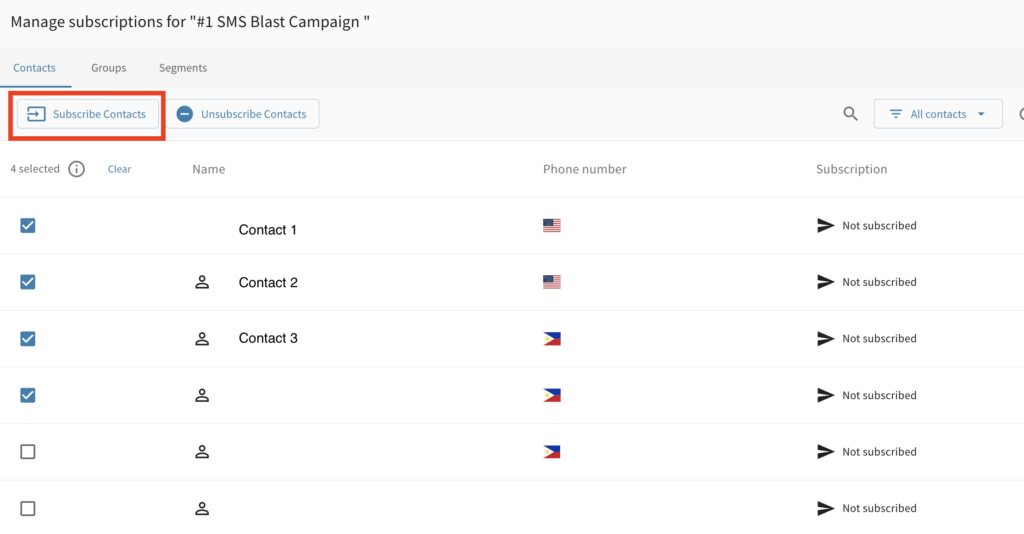
Once you’ve selected the contact or contacts you want to subscribe, click the Subscribe Contacts button.
You’ll then be asked to choose when the messages should be sent:
- Immediately – the messages will be sent right away after you click Confirm
- Specific date & time – you can schedule the messages to be sent at a later time of your choice
By Subscribing Groups or Segments
After clicking Actions > Manage Subscriptions, you’ll be prompted to select the Groups or Segments you want to subscribe. You can also choose one or multiple Groups or Segments at the same time, depending on your needs.
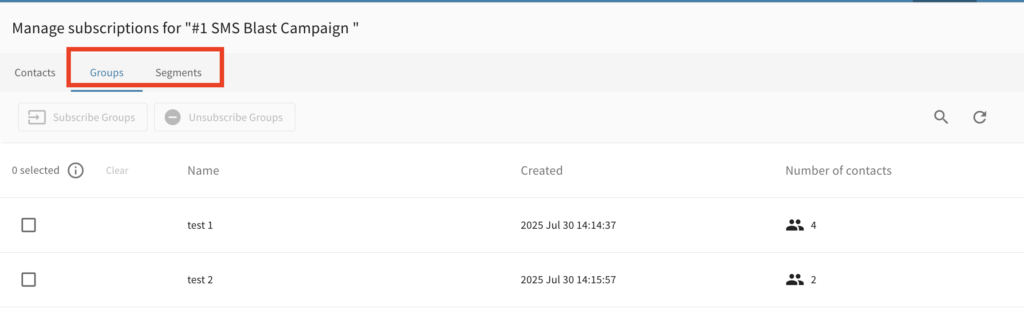
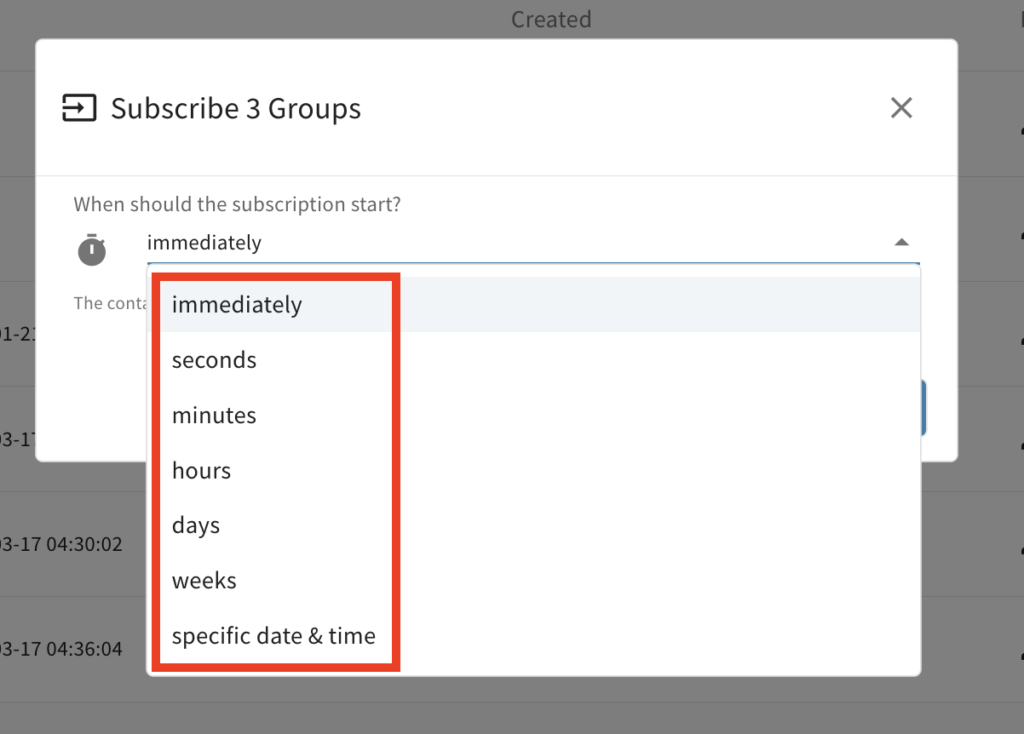
Next, choose when the subscription should start. You can:
- Start immediately
- Delay the subscription by a set time (seconds, minutes, hours, days, or weeks)
- Schedule it for a specific date and time
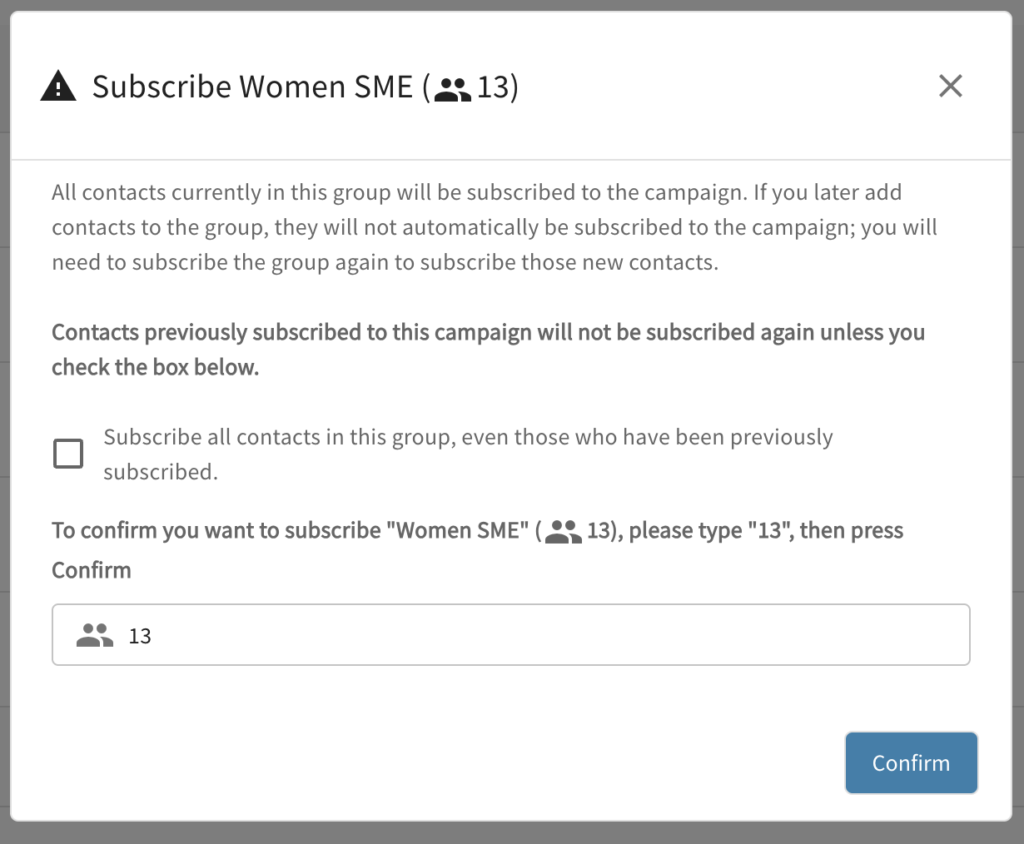
If you are subscribing a group or segment, there is one final confirmation step. You will be asked to confirm whether you want to subscribe all contacts in the group or segment, including contacts who were previously subscribed to the same campaign. If you want to include those previously subscribed contacts, check the box. If not, leave it unchecked.
You will also need to type the number of contacts shown in the confirmation message. This helps make sure you are subscribing the correct group or segment with the expected number of contacts.
Please note: if you add new contacts to a group or segment later, they will not automatically be subscribed to the campaign. You will need to subscribe the group or segment again if you want those new contacts to be included.
Have questions or need a little extra help?